System Settings
The System Settings tab lets you control a few general preferences that affect how the add-in looks and behaves. There are three settings you can adjust:
- Add-In Theme
- Display the Insert Attribute Button
- Auto-Update Attributes upon Document Open
Add-In Theme
This controls the colour scheme used in the add-in's pop-up windows and menus. You have three choices:
- Light - Always uses a light/white appearance, no matter what theme you have set in Office.
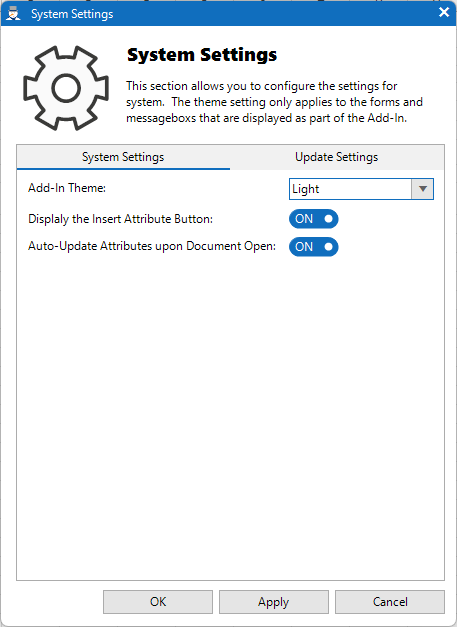
- Dark - Always uses a dark/black appearance, no matter what theme you have set in Office.
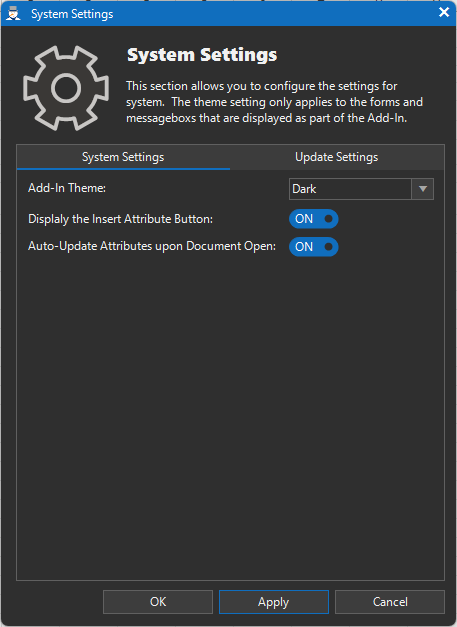
- Match Office (Default) -Automatically matches whatever theme you're using in Excel. If your Office is set to follow your computer's system theme, the add-in will do the same..
Display the Insert Attribute Button
This controls whether the "Insert Attribute" button appears on the toolbar (Ribbon).
This button is mainly needed when you're first setting up a document. Once setup is complete, most users won't need it anymore. You can also hide it for users who don't use it.
- On (Default) - The button is visible on the toolbar.
- Off - The button is hidden
You can change this setting at any time by clicking the toggle switch.
Auto-Update Attribute upon Document Open
This controls whether your document's attributes are automatically refreshed with the latest values every time you open it.
- On (Default) – Whenever you open the spreadsheet, all attributes are automatically updated with the current values from DDM.
- Off – Attributes are not updated automatically. You'll need to update them manually by clicking the "Update Attributes" button.
You can change this setting at any time by clicking the toggle switch.
For more information on updating attributes, Click here.